Help
Change a form
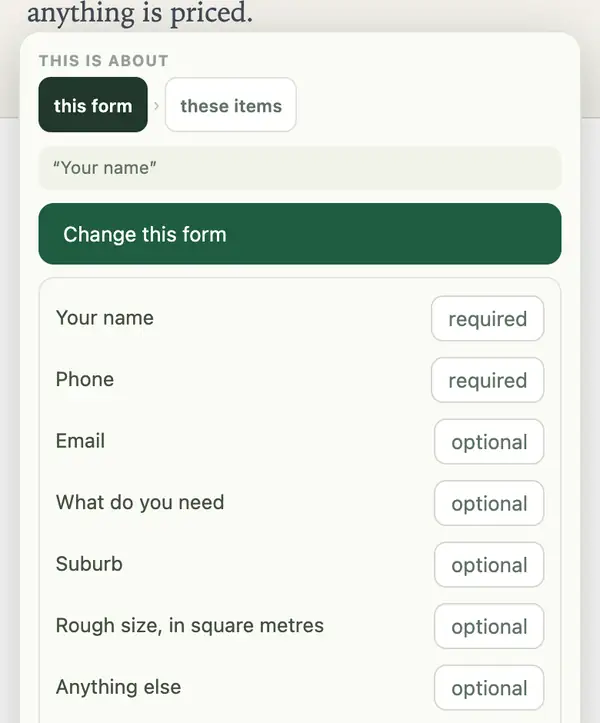
Tap the form on your site, then Change this form. Every field is listed with a button to change it.
Change the fields
- Open your site, tap Manage, then Change something on this page, and tap the form.
- Tap Change this form. Each field shows required or optional.
- Tap a field's button until it says what you want: make optional, make required or remove it. Nothing changes until you approve.
- Tap Add to my list, then send it from Changes and approve the preview.
A new field? Tap + Add a field under the list and say what it should ask.
Once it is live, check it: in your dashboard, open Forms, fill in the form and tap its button. It sends as a test, and nobody is emailed.
To send entries to a different address, tap Change at the top of Forms. More in Your enquiries.
Stuck? Ask your site manager, or email hello@fleetpages.au.