Help
Change hours and phone
Tap your hours or phone number on your site and type the right one. Your Manager changes every place the old one appears, not just where you tapped.
Hours or phone
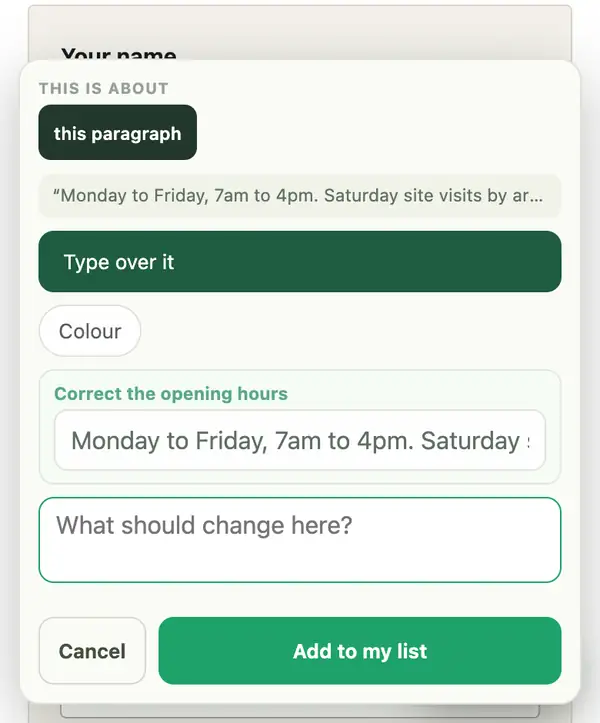
- Open your site, tap Manage, then Change something on this page, and tap your hours or phone number.
- Type the new ones in Correct the opening hours, or Correct the phone number.
- Tap Add to my list, then send it from Changes and approve the preview.
Closed for a while
- Tap Ask in your dashboard, or reply to any email from your site manager, with the dates and what customers should read: "Closed 24 December, back 7 January".
- Approve the preview. When you reopen, ask again to take the notice down.
Stuck? Ask your site manager, or email hello@fleetpages.au.