Every kind of change, shown for real
Owners mostly ask for the same dozen things, so here they are, one by one, recorded live on our demonstration site (Seabright Garden Care, a fictional business we run as a real tenant). Each example is the actual product doing the work: the ask in plain words, the Manager building it, and nothing going live without a yes. No mockups anywhere on this page.
There are three ways to do the asking, and they all end in the same place: by email, from your dashboard, or right on the page itself.
Change some wording

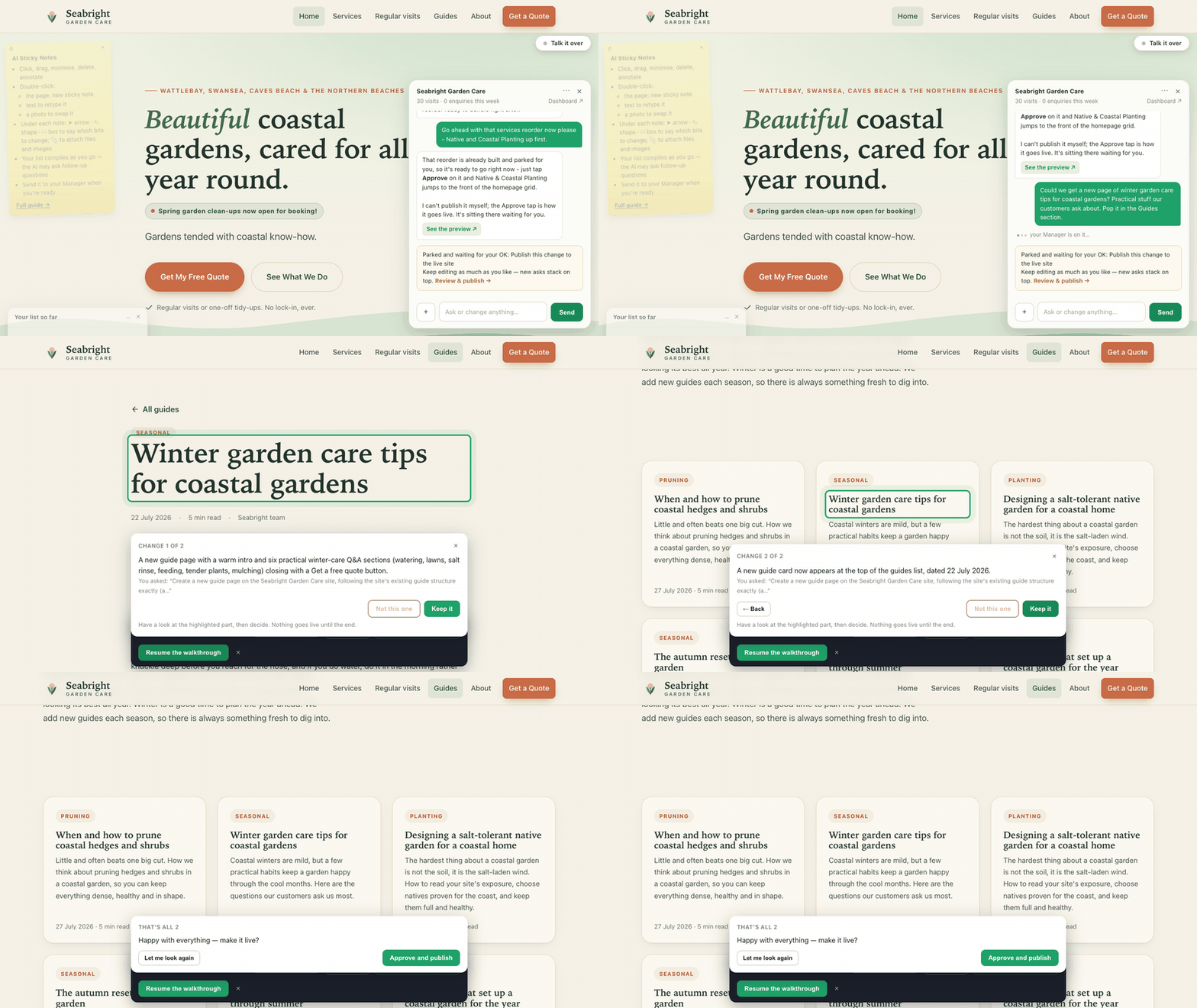
The owner asked, in the site chat: “Can you change the big heading on the homepage to ‘Beautiful coastal gardens, cared for all year round.’”
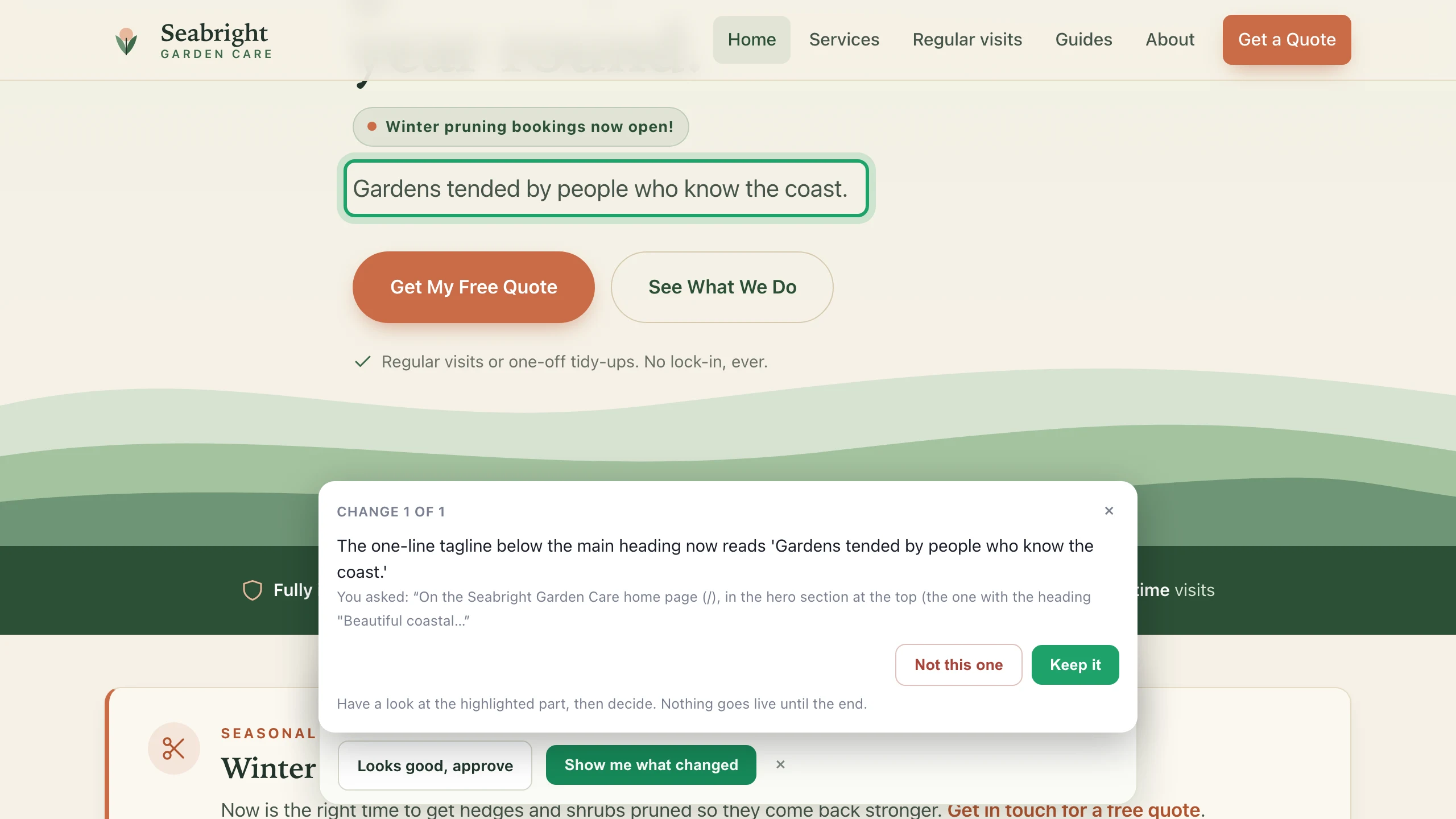
The Manager put it on a temporary preview the owner could share, kept the green accent styling without being asked, and parked it. The walkthrough then shows the exact change in place: have a look, then decide.
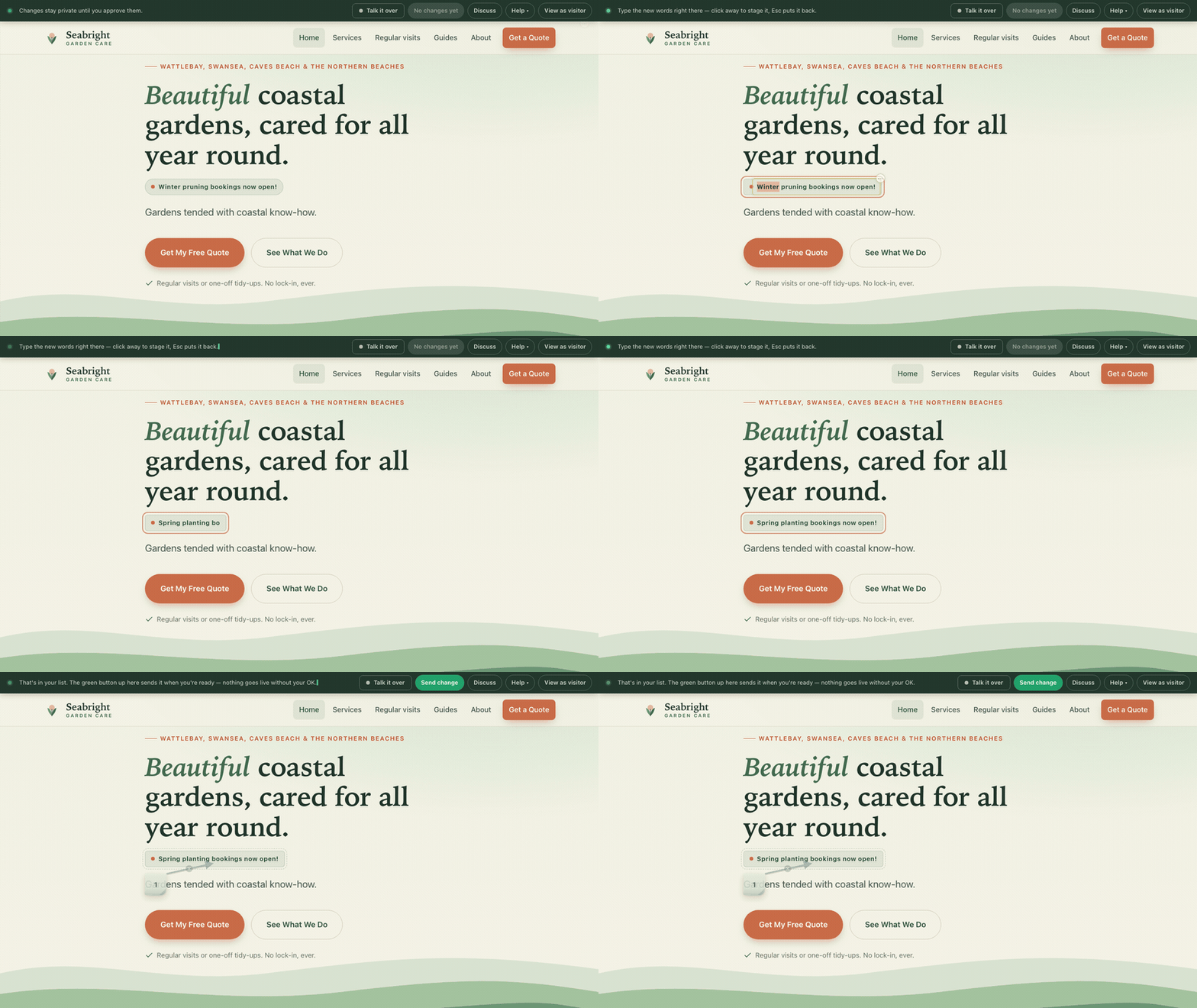
Prefer to just retype it? Double-click any text on your own site and type over it: that works too (the on-page editing guide shows it).
Add a card to a list
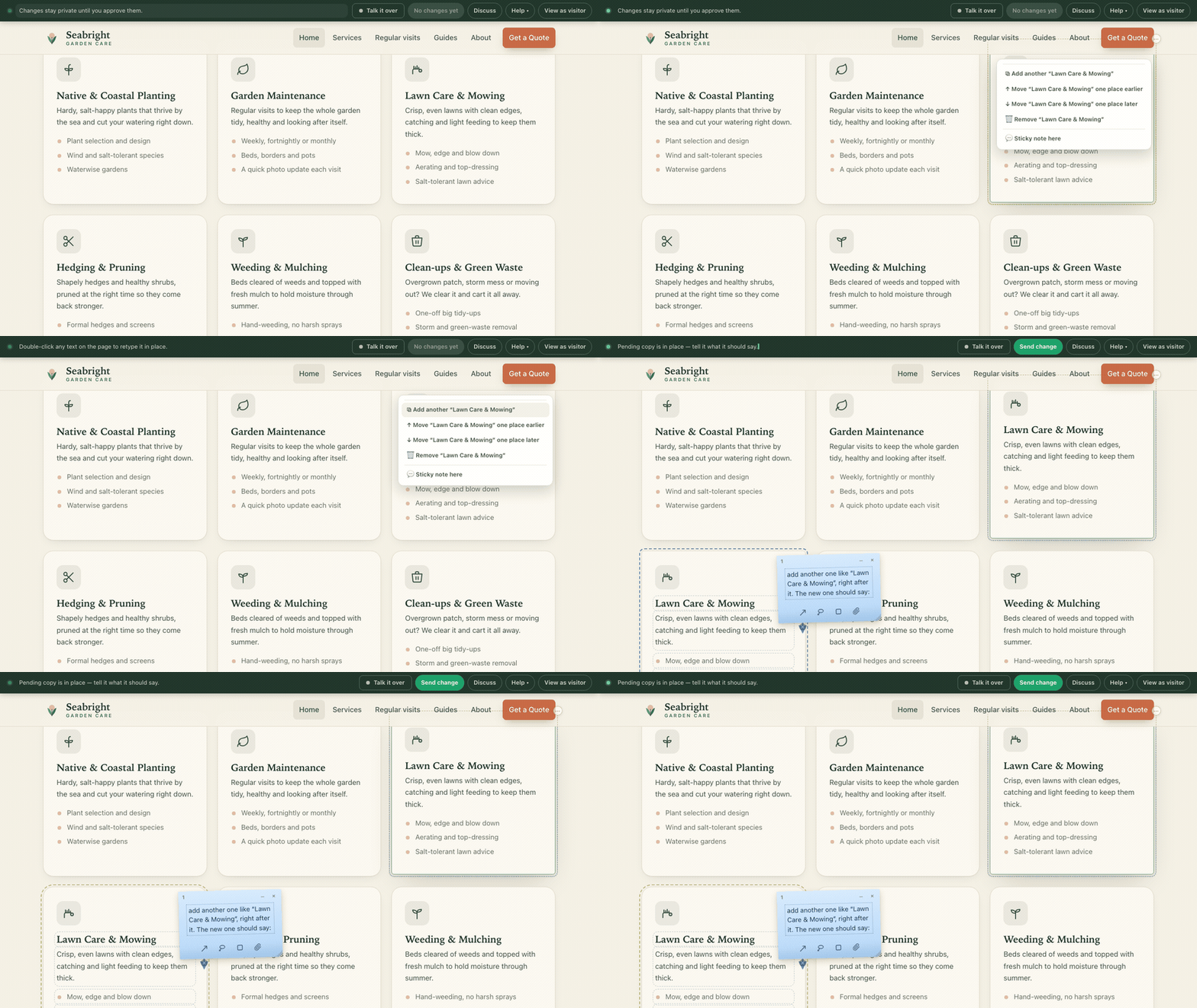
Six service cards, and the owner wants a seventh: “Could you add a seventh card to the services list for irrigation? Something like Irrigation and Watering, with a line about setting up and looking after garden watering systems.”
The new card arrives matching the others’ exact structure: icon, title, description, bullet points, without the owner describing any of that. The walkthrough rings the new card so there’s no hunting for what changed.
Removing a card, or rearranging them, is the same sentence in the other direction.
Move things around
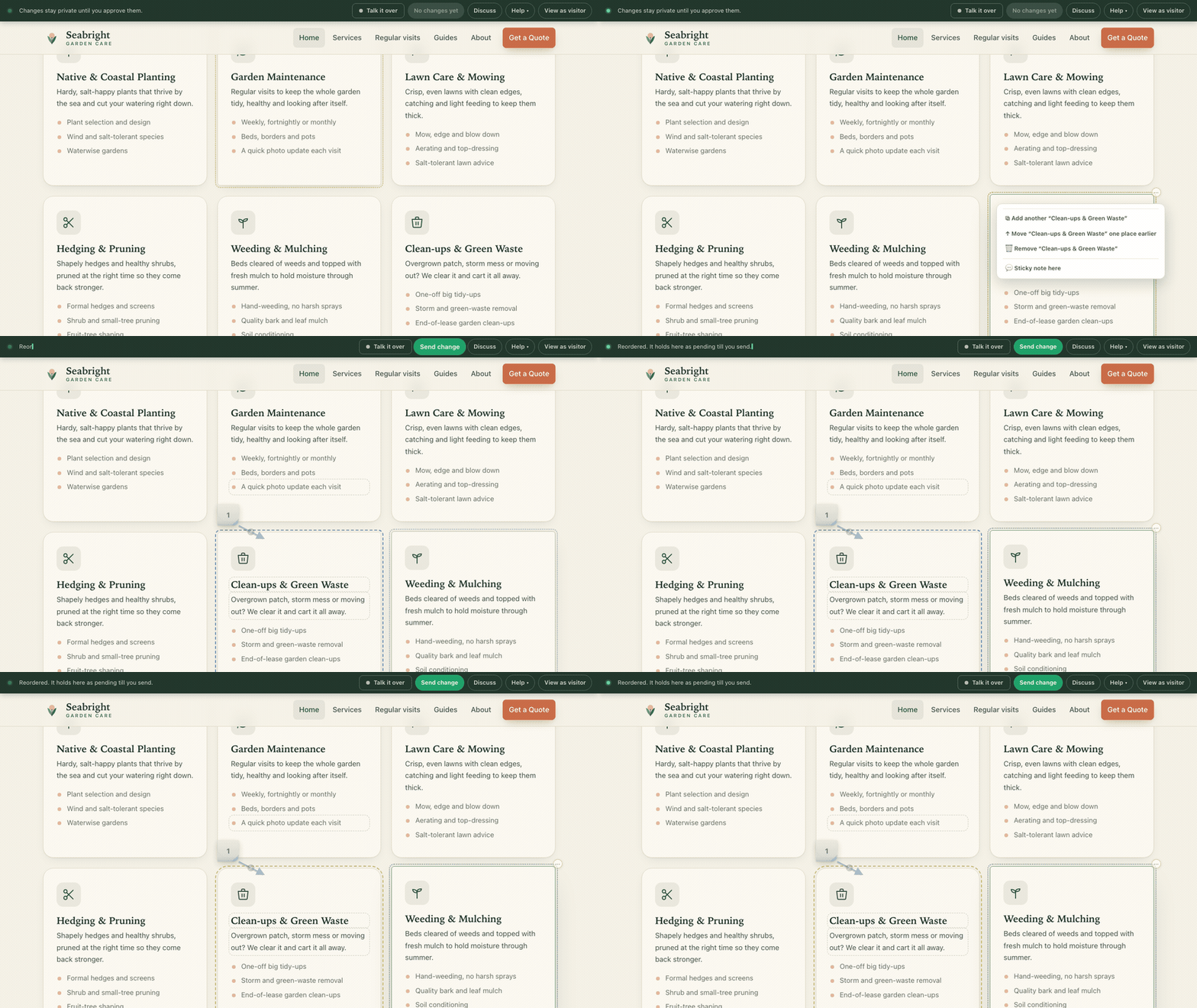
Order is opinion, and it’s the owner’s to have: “Go ahead with that services reorder now please, Native and Coastal Planting up first.” One sentence, and the signature service leads the grid, with the other cards following in their previous order.
The walkthrough describes the reorder in plain words before anything goes live, so “did it understand me?” is never a leap of faith.
Swap a photo
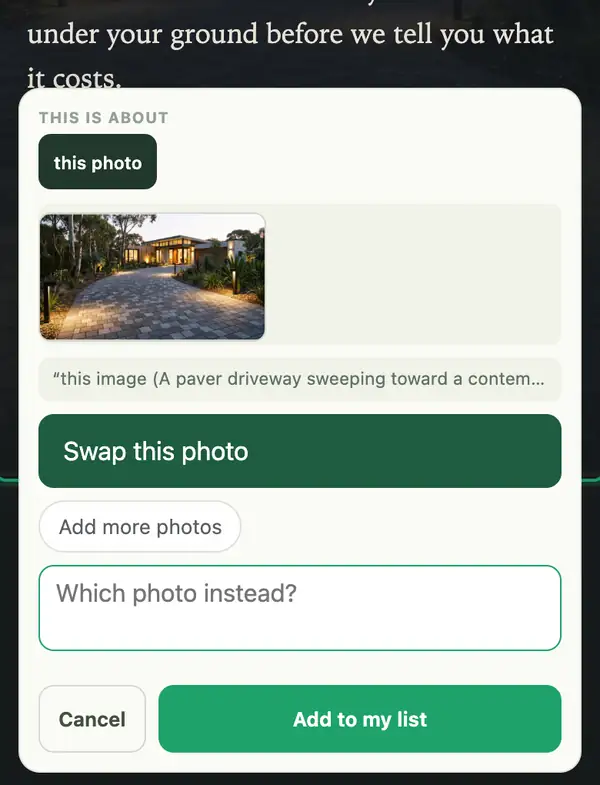
Point at any photo on your own site and swap it: pick the new file and it shows in place, outlined, as a preview of what you mean. The swap goes on your list for your Manager.
Photos can also just ride an email or a chat message as attachments: “use this one on the makeovers page” is enough.
Several changes at once
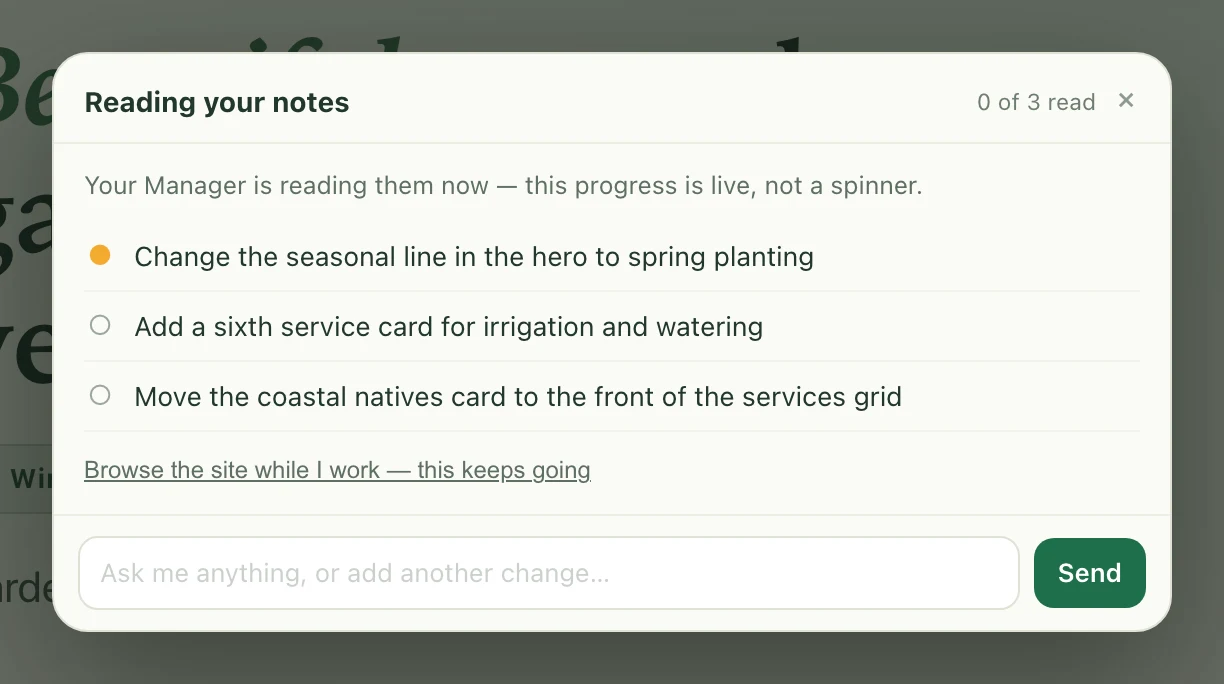
Point at a few things around the page and add each to your list. Then open Changes in the corner panel and press Send to my Manager. That press sends: there is no confirmation screen to work through first, because you have already seen each change on the page as you made it.
A panel opens on your own page and shows the work happening: your changes listed, ticking off as each one is done, and a counter that moves because work is finishing rather than because something is spinning. If one of your notes could genuinely go two ways, it asks you there before it starts rather than guessing. You can browse away and it keeps going. It ends in a single preview carrying the lot.
Add a page
“Could we get a new page of winter garden care tips for coastal gardens? Practical stuff our customers ask about. Pop it in the Guides section.”
Minutes later: a full guide page in the site’s existing structure, six practical Q&A sections, dated, closing with the usual quote invitation, plus its card on the Guides index. The walkthrough tours both before anything goes live.
Pages you didn’t have to brief a designer, a writer and a developer for: just the sentence above.
Ask how the site is going
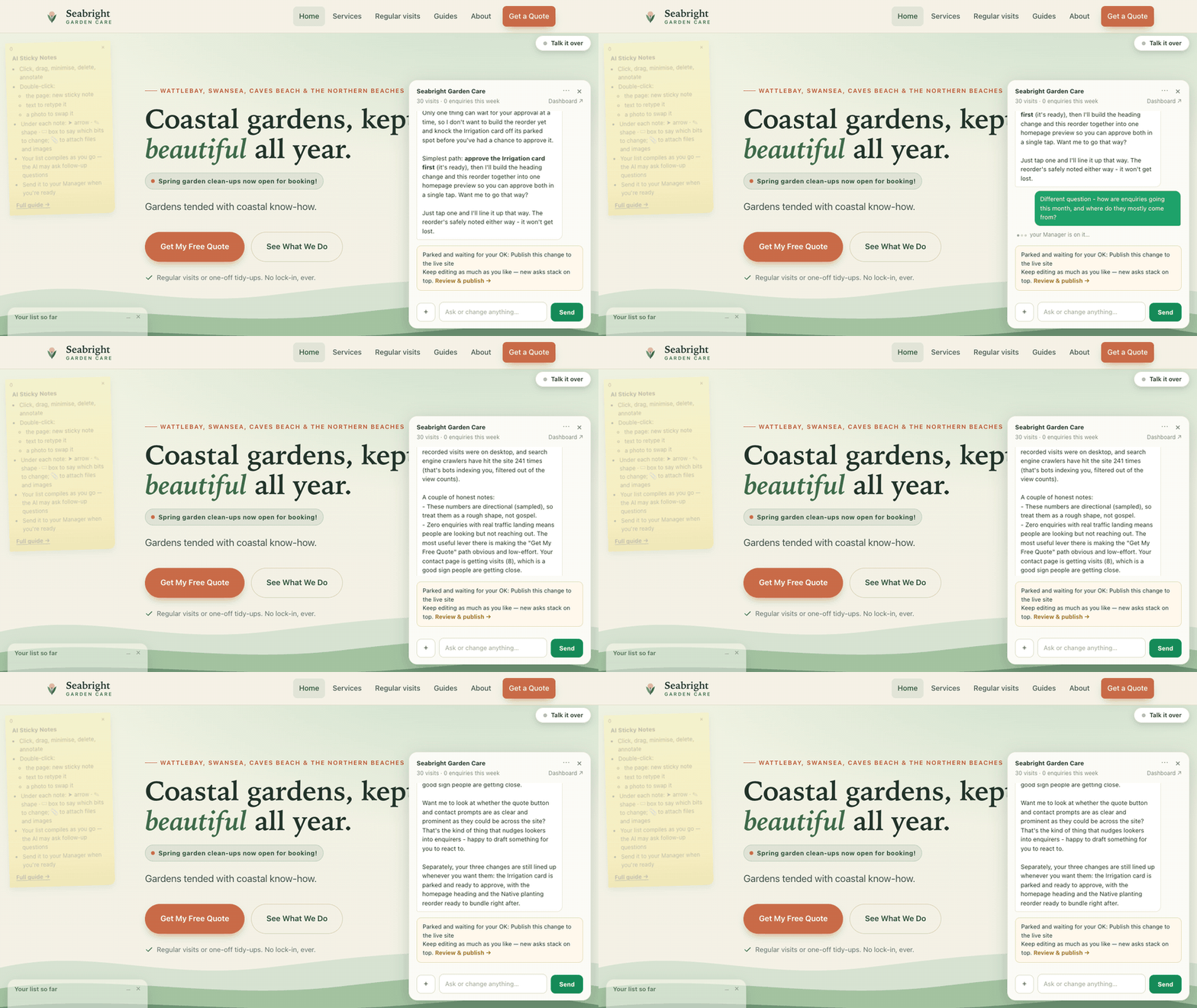
The same chat answers questions: “How are enquiries going this month, and where do they mostly come from?” The Manager reads the real numbers, visits, enquiries, which pages people land on, and answers honestly, including when the honest answer is “these are directional, treat them as a rough shape”.
It also thinks like a caretaker: a quiet month comes back with a suggestion you can react to, not just a number.
No change the AI makes to your pages goes live without your approval
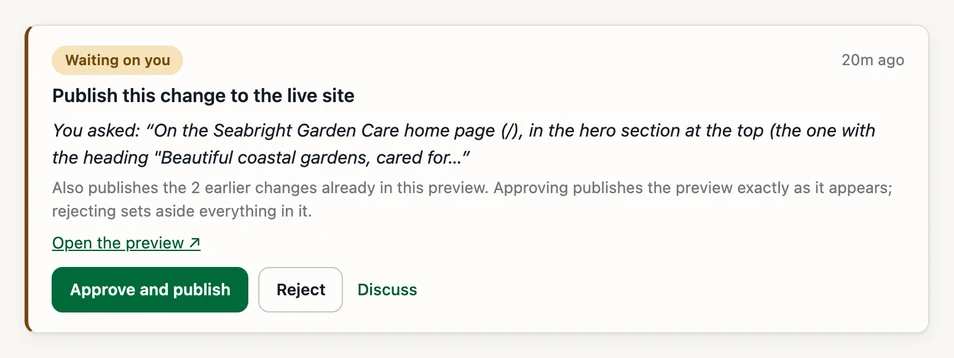
Every path ends the same way: a private preview of exactly what changed, a walkthrough that takes you to each change and asks Keep it?, and an Approve and publish that is yours alone to press: on the preview itself, from your dashboard, or from the email in your inbox.
If one preview carries several stacked changes, the approve card says so in plain words, and rejecting discards the lot: no half-surprises.
One button there is worth pointing out because nobody expects it: Show someone. It emails a read-only link to your business partner, your spouse, whoever you want a second opinion from. They can look at the real page for a week and they cannot change or approve anything. Getting a yes from the other decision-maker is often the actual bottleneck, so it should not require handing over your sign-in.