Help
Approve a change
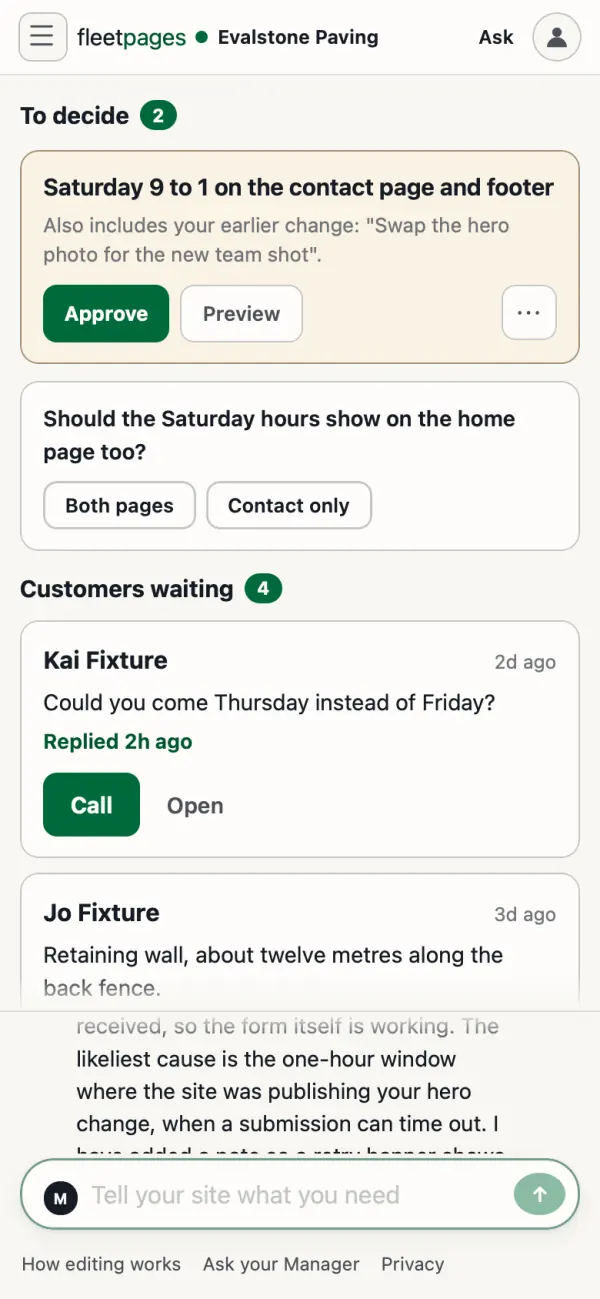
A built change waits on Today in your dashboard. Nothing goes live until you tap Approve.
See it, then approve it
- Open Today. The change sits under To decide.
- See it first: tap Preview. Your site opens in a new tab with the change in place.
- Approve: tap Approve. The card says Published when it is live.
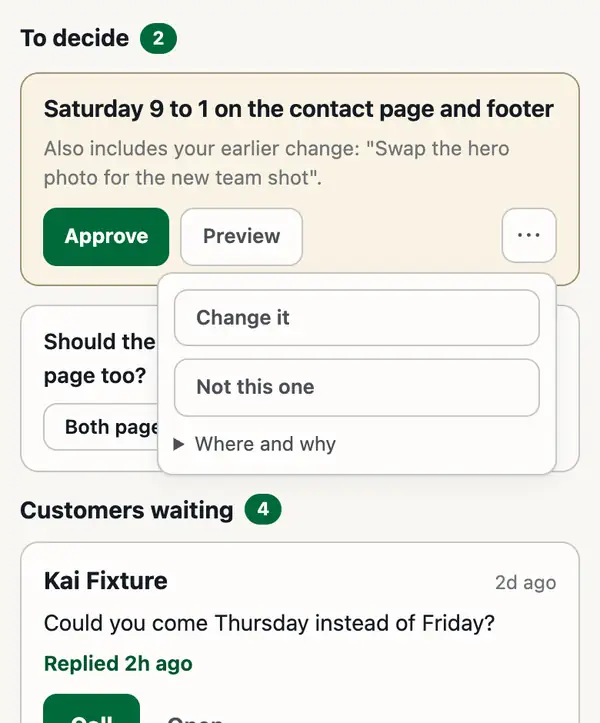
Not quite right?
- Change it: tap ⋯, then Change it. Say what should be different, and your Manager builds a new preview.
- Not this one: tap ⋯, then Not this one. Nothing changes on your site.
From the email
The email's Approve opens a page with Approve and publish and See it on the site first. Decline is the same as Not this one. The buttons work for 7 days.
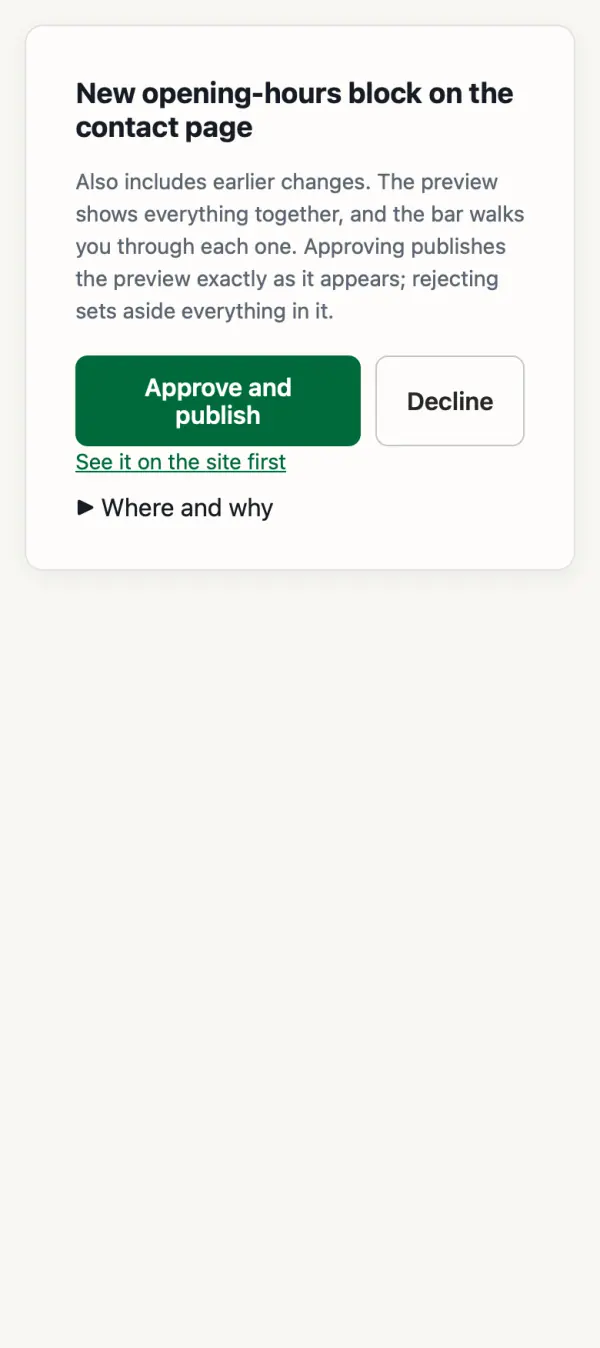
Link expired? Tap Email me the links.
Stuck? Ask your site manager, or email hello@fleetpages.au.