Help
Change the words
Double-tap the words on your own site and type the new ones. You see a preview before anything goes live.
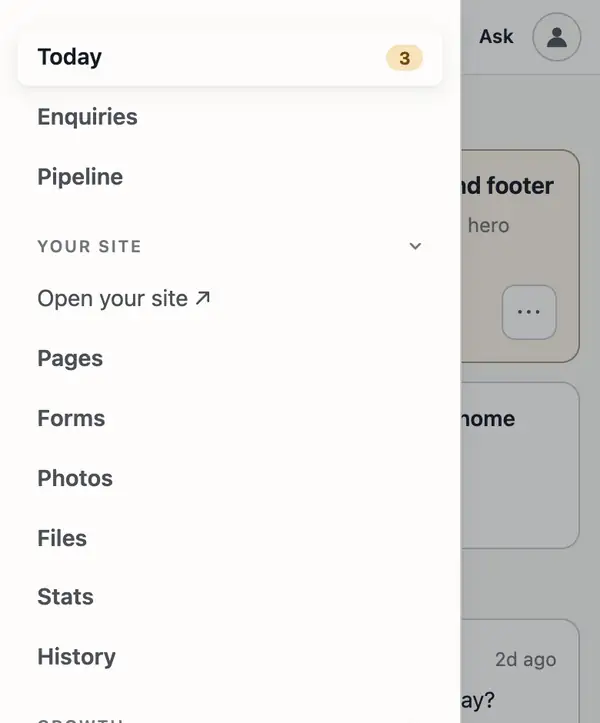
Open your site
- In your dashboard, tap ☰, then Open your site. It opens with a Manage button on it.
Type over them
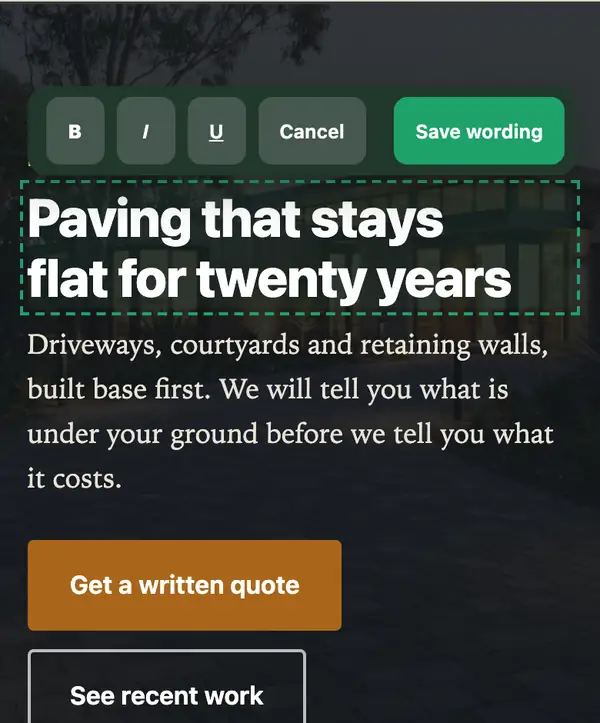
- Double-tap the words you want to change. On a computer, double-click. They open for typing right where they sit.
- Type the new words, then tap Save wording.
Send it
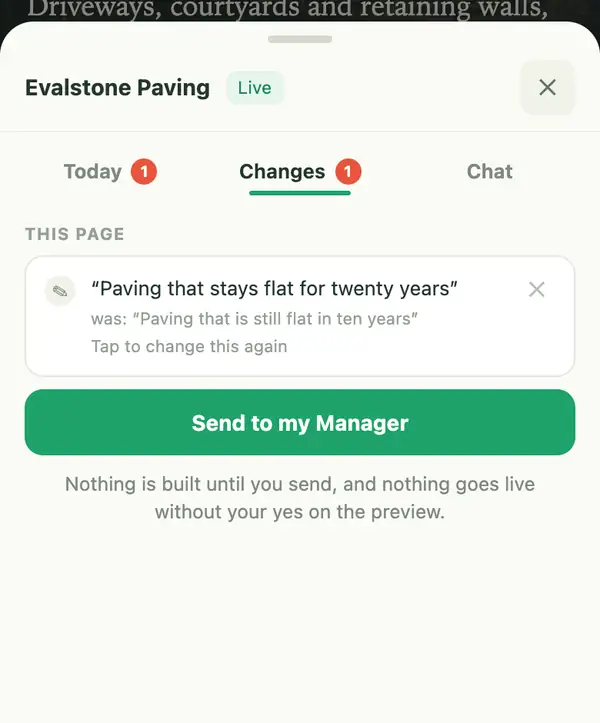
- Tap Manage, open Changes, and tap Send to my Manager. Change a few things first if you like: they all go together.
- When the preview is ready, approve it.
Rather say it? Tap Ask in your dashboard, or reply to any email from your site manager, and say what to change.
Stuck? Ask your site manager, or email hello@fleetpages.au.