Help
Swap a photo
On your phone, press and hold the photo on your site, then tap Swap this photo. The new one goes live when you approve the preview.
Swap it
- In your dashboard, tap ☰, then Open your site.
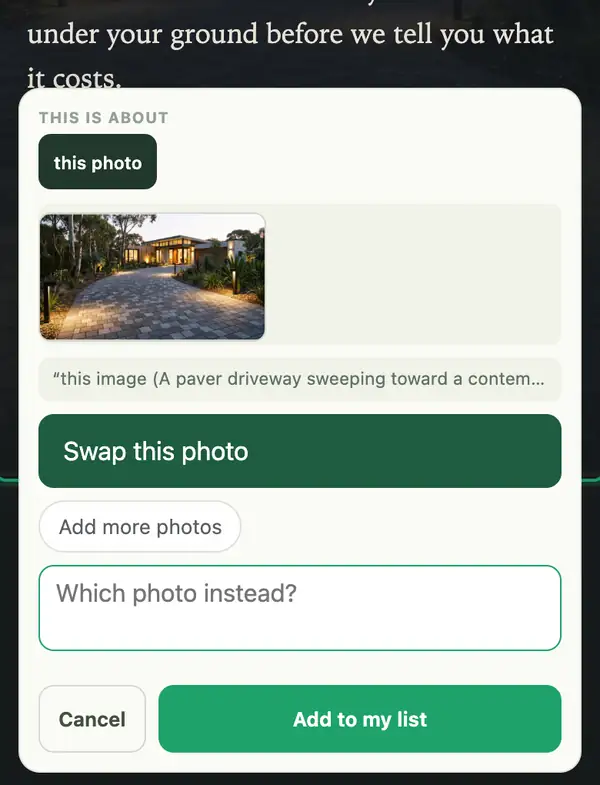
- Press and hold the photo until a card opens. On a computer, right-click it.
- Tap Swap this photo, choose the new one from your phone, then tap Add to my list.
- Tap Manage, open Changes, and tap Send to my Manager.
- When the preview is ready, approve it.
A photo in a gallery? The card shows the whole set: tap the one to swap.
Easier to email it? Reply to any email from your site manager with the photo attached, and say which one it replaces. Sizes and file types: Photos and files.
Stuck? Ask your site manager, or email hello@fleetpages.au.