Help
Add a page
Give the page a name and a few rough notes, and your Manager builds it for you to approve.
A new page
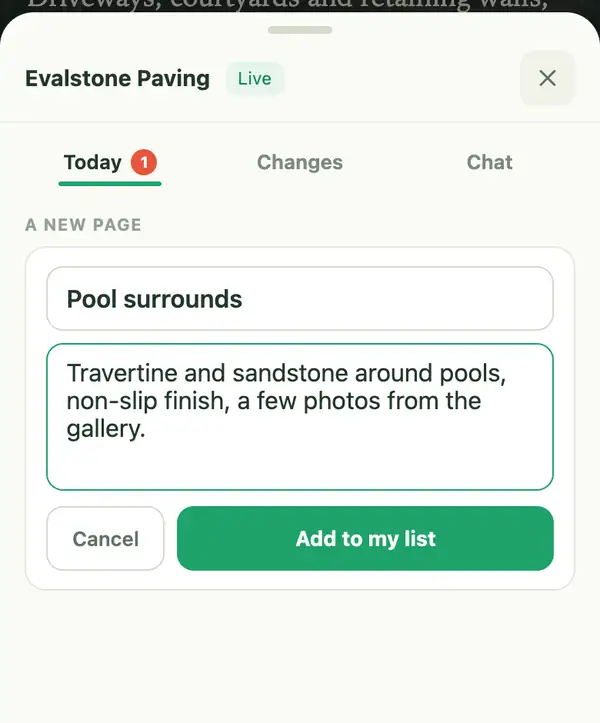
- Open your site, tap Manage, then Add a new page.
- Type the page's name, and what it should say. Rough notes are fine: anything you leave out comes back as a blank for you to fill in.
- Tap Add to my list. If your site has a menu, the page goes in it unless you untick Add it to the site menu.
- Changes opens: tap Send to my Manager. A new page takes a little longer to build than a small change.
- When the preview is ready, approve it.
A new section
On a page you already have? Tap Manage, then Change something on this page, and tap inside the section. Choose this section at the top of the card, then Add a section after this one.
Stuck? Ask your site manager, or email hello@fleetpages.au.