the dashboard

A tour of your dashboard

The screen you open to run your site: who is waiting on you today, the changes waiting on your yes, every version you can go back to, and what your Manager knows about your business. Shown on our test businesses.
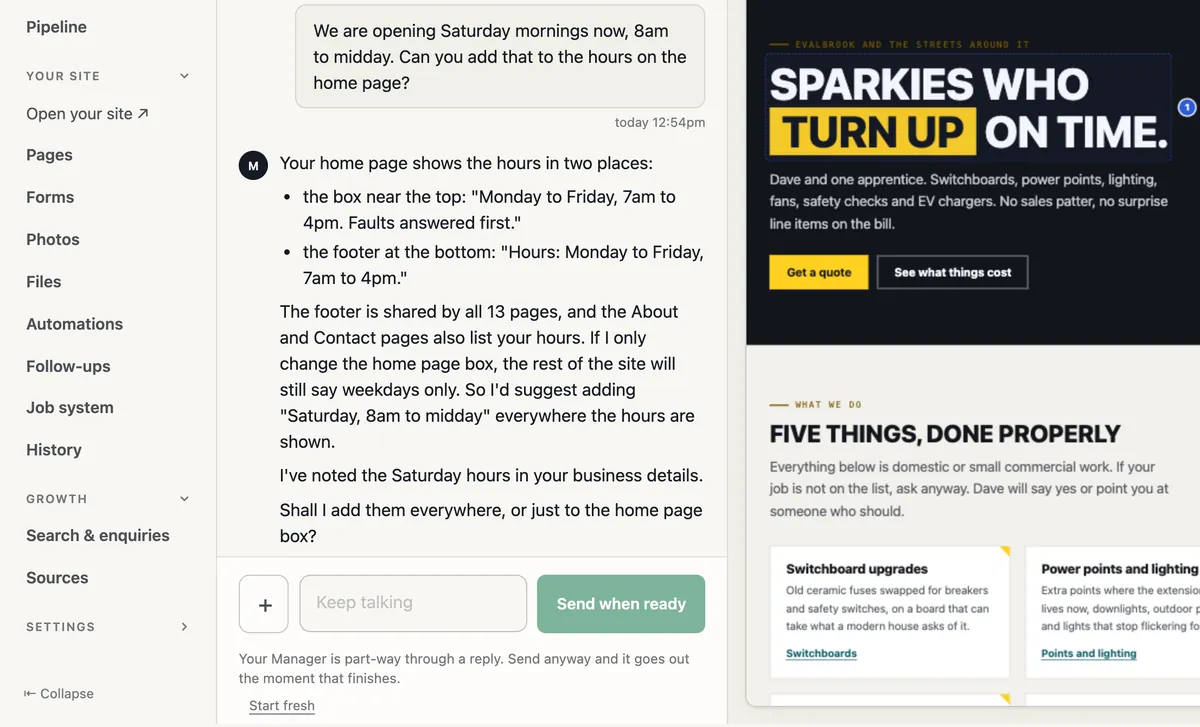
The dashboard on a computer for Evalbrook Electrical: the menu on the left with Pages, Photos and History; in the middle the owner asks to add Saturday mornings, 8am to midday, to the hours on the home page, and the Manager replies that the hours show in two places and the footer is shared by all 13 pages; on the right, the business's own home page with pin 1 beside the new heading
Your Manager beside your own site, on a computer, for Evalbrook Electrical, our test business: you ask in the middle, and the change is pinned on your page on the right.
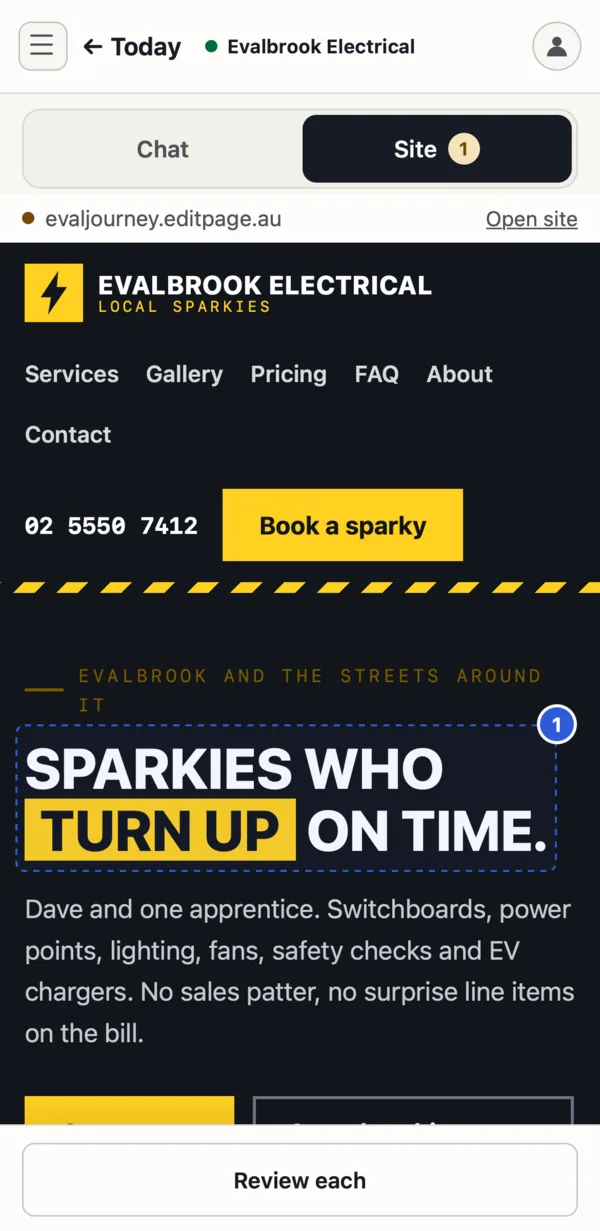
The Manager on a phone for Evalbrook Electrical with the Site tab open, showing 1: the business's own home page, its new heading outlined with pin 1, and a Review each button at the bottom
On a phone, Site shows your own page with the change pinned. Evalbrook Electrical, our test business.
room one

Today

Customers waiting on you come first, each with Call and Open. Where your Manager has drafted a reply, it waits on the card for you to send.

Your Manager sits beside them. It is the same conversation as your email and the bar on your own site, so you can pick it up wherever you are. Ask in your own words, or start from an example.
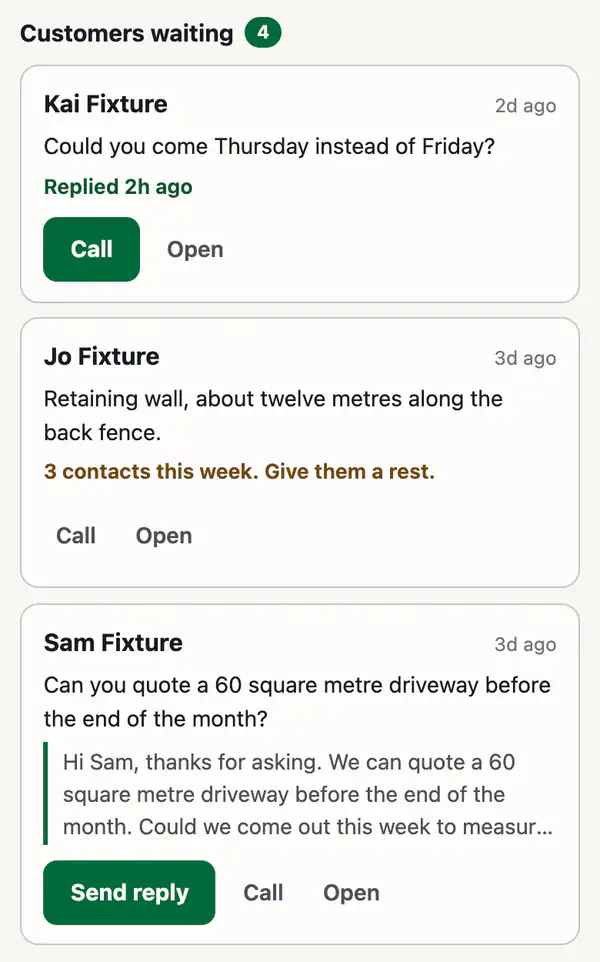
Today on a phone: customers waiting, four, each with Call and Open; the third has a reply drafted by the Manager and a Send reply button
Customers waiting, on our test business. The third has a reply drafted, ready to send.
room two

A change waits for your yes

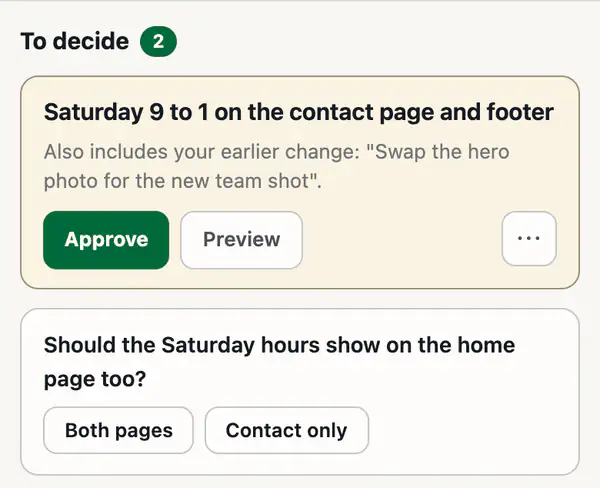
When your Manager has built a change, it waits here. Open the preview to see it on your real pages, then approve it. Nothing goes live before that tap.

If a change carries an earlier one with it, the card says so. A question from your Manager sits underneath, with its answers as buttons.
How approving works

To decide: Saturday 9 to 1 on the contact page and footer, which also includes an earlier change, with Approve and Preview buttons; below it a question, should the Saturday hours show on the home page too, with two answers
To decide, on our test business.
room three

Every version, kept

Every version that has gone live is listed, with what changed in plain words.

Restore an earlier one and your Manager prepares it for you to approve. Nothing changes until you say yes.
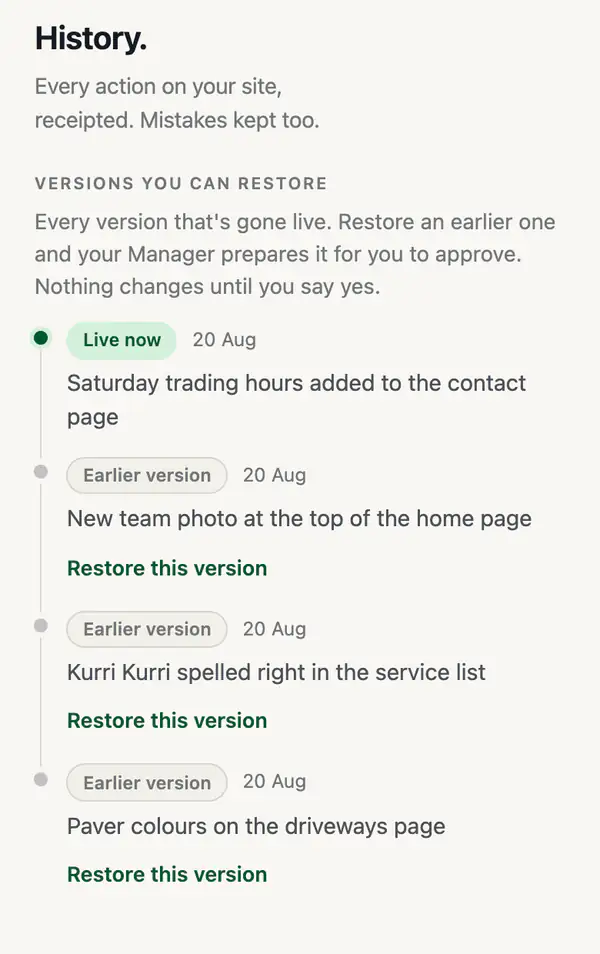
History: versions you can restore, the newest marked Live now, and earlier ones such as a new team photo at the top of the home page, each with Restore this version
History on our test business. Each earlier version can be restored.
room four

What your Manager knows

Your Manager keeps notes on your business: what you asked for, what it promised, and the facts it works from.

Correct anything and it uses your wording from then on. What it finds on your site, like your phone number, waits for you to confirm.
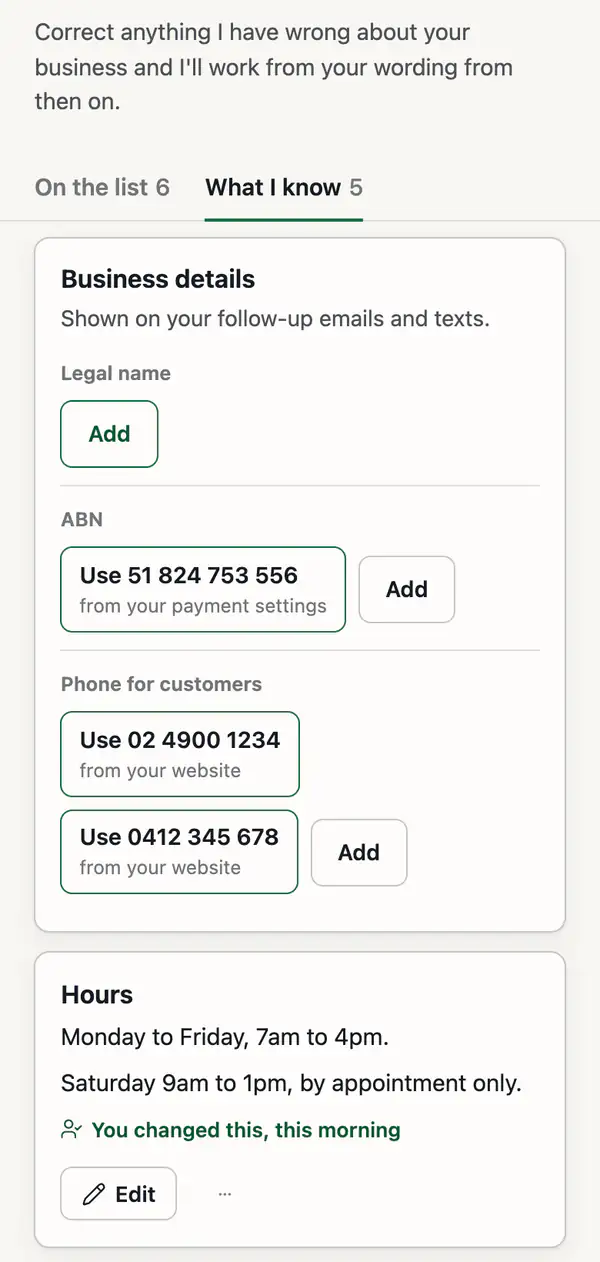
The Notebook, What I know: business details shown on follow-up emails and texts, with an ABN and two phone numbers offered from the business's payment settings and website, and the opening hours, marked You changed this, this morning
The Notebook on our test business, offering the phone number from its own website.

Your site, run from here

Every fleetpages site comes with this dashboard, on your phone and your computer.

Get started