Help
Asking for a change
Tell your site manager what you want, in your own words. It builds the change on a copy and sends you a preview; nothing goes live until you tap Approve.
Three ways to ask
- Dashboard: tap Ask at the top of any page.
- Email: reply to any email from your site manager, or write to the address it comes from, such as yourbusiness@editpage.au. Send from the address we have for you; other addresses are refused.
- On the page: tap Open your site in the dashboard and point at the thing. The on-page guide shows how.
All three are one conversation.
Second email address? Add it as an Owner in Settings, Users & access.
What happens next
- By email, a quick reply comes first. Small changes usually take a few minutes; bigger jobs can take longer.
- If your ask could go two ways, you get a question first, with buttons for the likely answers.
- The preview email has View the preview, Approve and Decline. Its buttons work for 7 days.
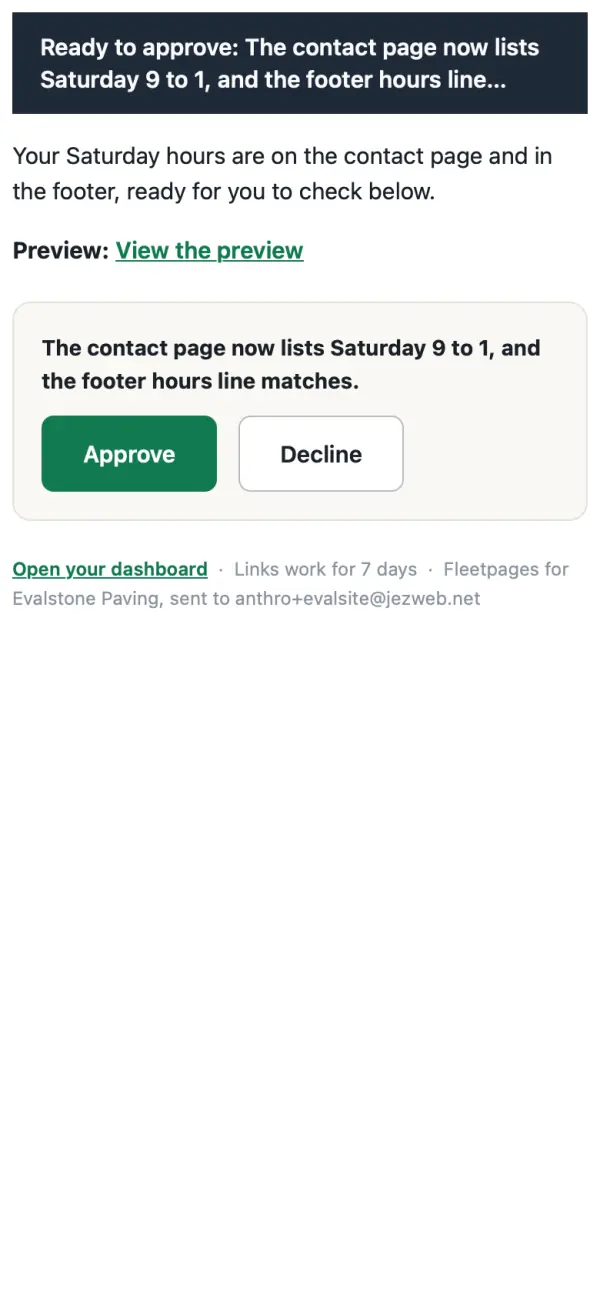
- Approve opens a page with See it on the site first. Tap Approve and publish. Not showing? Give it a minute, then refresh.
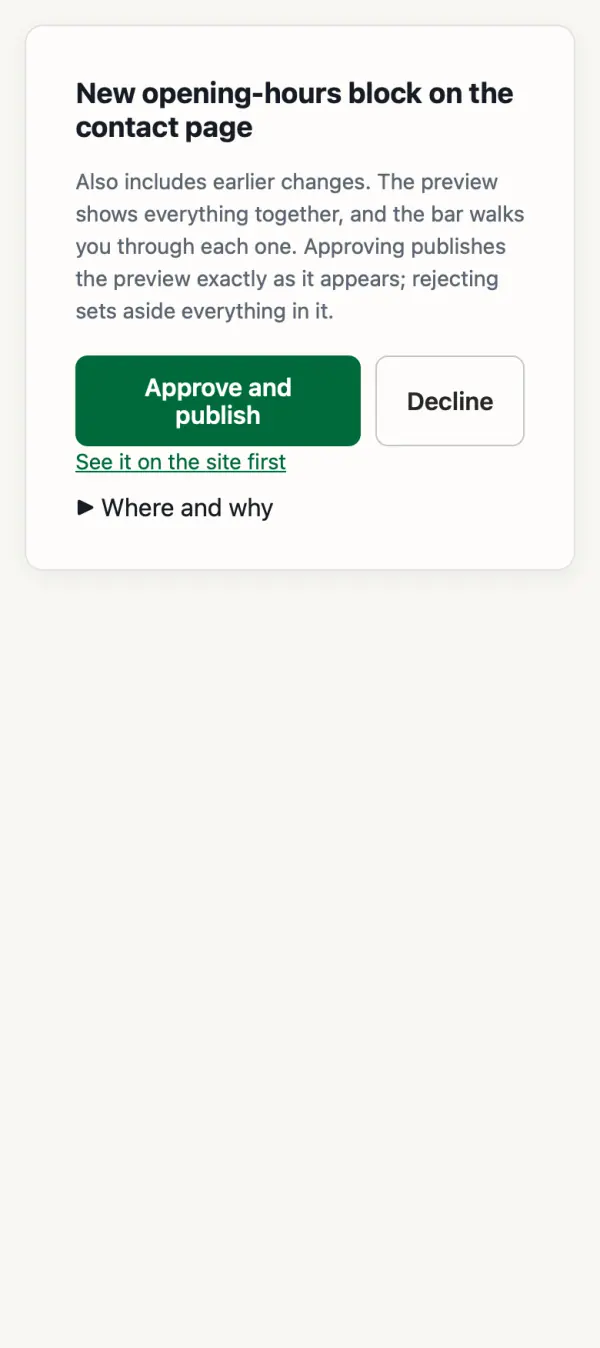
Decline changes nothing. Approve and Preview also wait on your dashboard's Today page.
Approve emails go to the address tagged Approver in Settings, Notifications. To move that tag, ask us.
Stuck? Ask your site manager, or email hello@fleetpages.au.