Help
Point at it, or mark up a screenshot
When a change is easier to show than to describe, point at the exact thing on your site, or draw on a screenshot and send it.
Point at it on your site
- In your dashboard, tap Open your site.
- Tap the button in the corner: a small pill on a phone, a slim tab at the edge on a computer.
- Tap Change something on this page, then tap the thing you mean: a line of words, a photo, a button, a whole section.
- It gets a ring, and a small card quotes it back to you. Widen it to the section or the whole page from the card.
- Type what you want in the card, or use the button it offers, then tap Add to my list.
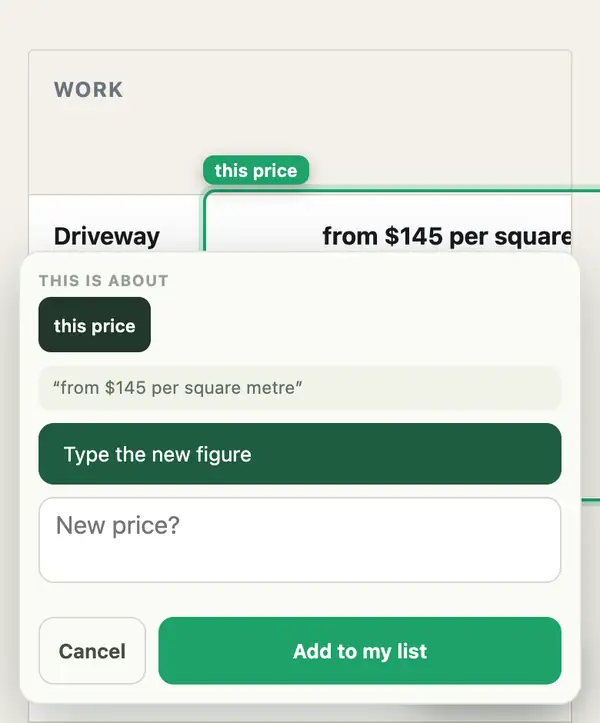
Point at as many things as you like, then tap Send to my Manager. Nothing goes live until you approve the preview.
Rather talk? Tap the microphone beside the message box, then check the words before you send.
Editing your own site has every gesture.
Draw on a screenshot
- Take a screenshot of the page.
- Draw on it with your phone's markup tool: circle it, add an arrow, underline or highlight it, or write a note.
- Send it by email to your site manager, in your dashboard chat, or with the + beside the message box on your site.
Your marks and any words you wrote are read as an instruction, not as a photo for your site.
Send marked-up screenshots on their own, not in a big batch of photos.
Stuck? Ask your site manager, or email hello@fleetpages.au.